Thanks for your great service. SocketXP IoT Remote Access Solution works like a charm.
Tobias
freshtaste.de
SocketXP gives you instant, secure remote access to any Raspberry Pi behind NAT routers, firewalls, cellular networks, and CGNAT — via SSH, VNC, RDP, or browser. No VPN. No port-forwarding. No on-site visits.
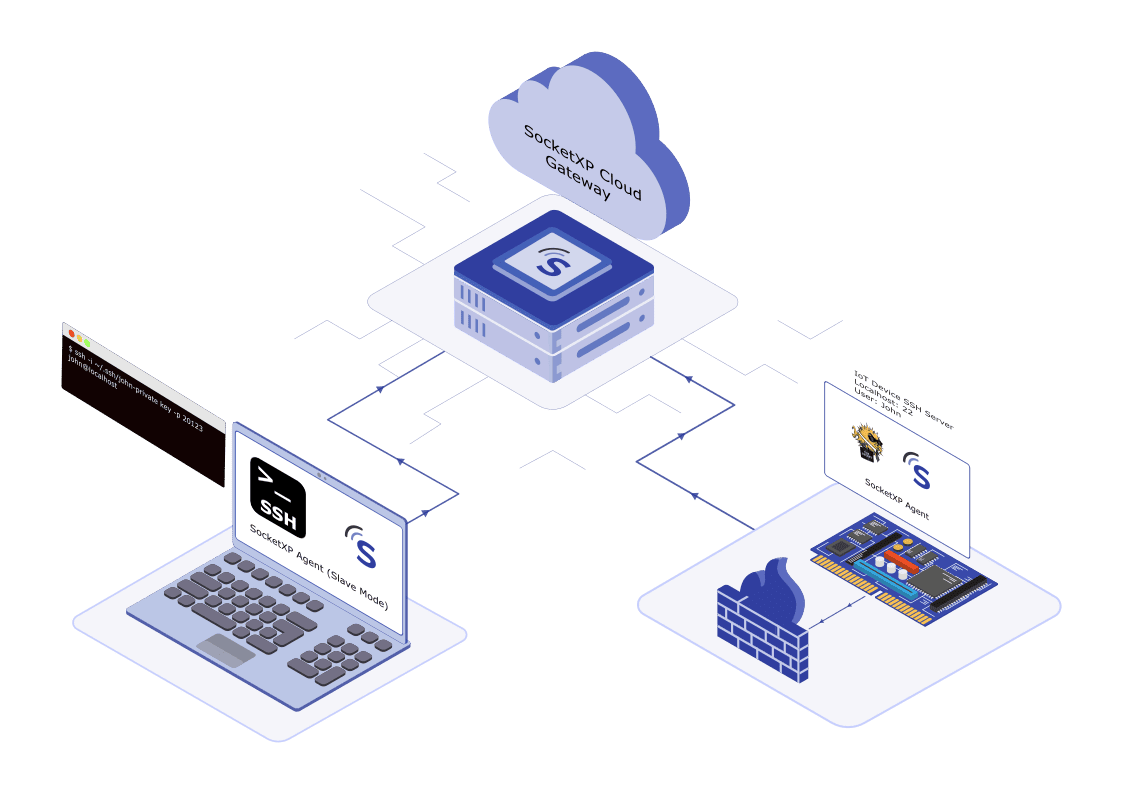









Raspberry Pi remote access and control refers to the ability to access and control a Raspberry Pi, located behind a NAT router or firewall, from a remote computer or device over the internet. This can be done using SSH, VNC, RDP, or a web browser. SocketXP uses SSL/TLS reverse proxy tunnels to securely remote access Raspberry Pi devices behind NAT routers, firewalls, cellular networks, and CGNAT — without port forwarding.
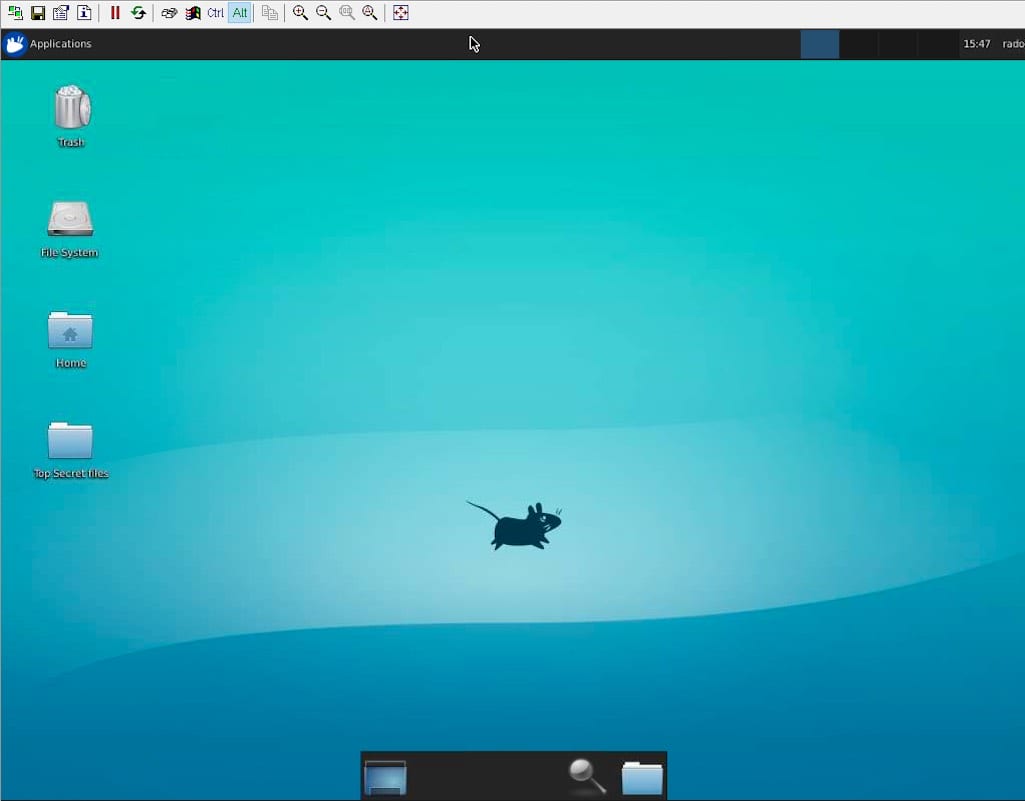

Quickly check performance and resolve issues on your Raspberry Pi remotely in real-time.

Access and organize files or update apps on your Pi without being on-site.

Remotely access your Raspberry Pi without a connected monitor, keyboard, or mouse.
SocketXP allows you to remotely SSH into your Raspberry Pi from anywhere in the world, at any time — giving you unparalleled flexibility to manage, debug, and update your Pi without physical access or VPN setup.
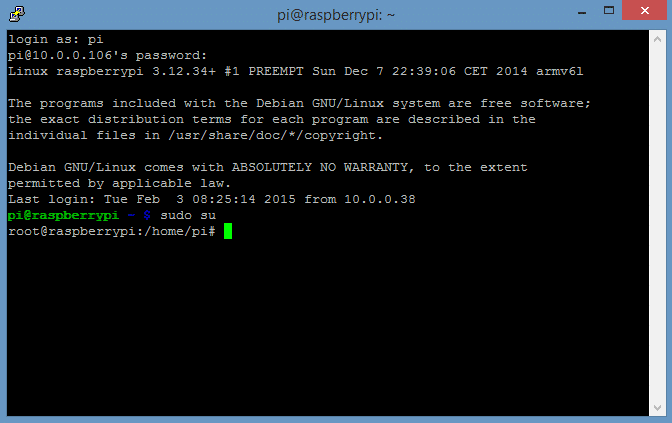

Seamlessly SSH into Raspberry Pi behind NAT routers, firewalls, CGNAT, or cellular networks.

Enhance security with SSH key authentication through clients like PuTTY on Windows or Terminal on Mac.

Log in to your Raspberry Pi SSH using a web browser — no SSH client installation required.
Experience full graphical desktop access to your Raspberry Pi remotely with VNC. Run GUI applications, configure settings, and interact with the Raspberry Pi desktop as if you're right in front of it — from anywhere in the world.

Access your Raspberry Pi's graphical desktop securely from any location via VNC.
SocketXP's outbound tunnel makes VNC access possible even behind CGNAT with no port forwarding.

Use RealVNC Viewer, TightVNC, TigerVNC, or macOS Screen Sharing — any standard VNC client works.

Enable VNC on your Pi, install SocketXP, and get a secure remote desktop in minutes.
Securely expose web applications running on your Raspberry Pi — Node-RED dashboards, Flask APIs, Grafana, Home Assistant, Jupyter Notebooks — to the internet with a permanent public HTTPS URL. No port forwarding or static IP needed.
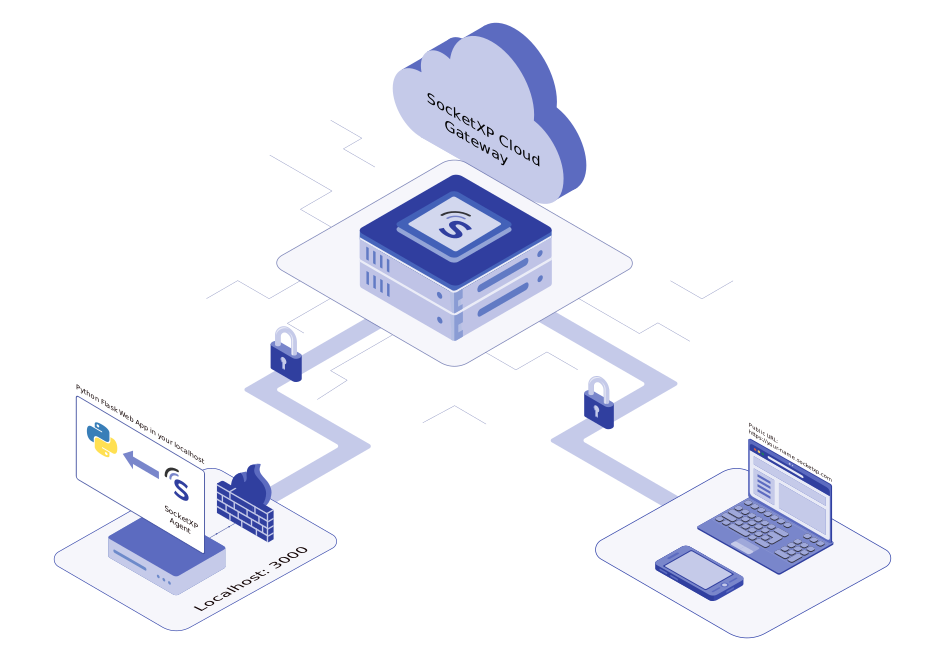

Expose your Pi web apps with SSL/TLS encryption and a permanent public HTTPS URL — no router changes needed.

Access Node-RED, Grafana, Home Assistant, or any Pi web app remotely from any browser, anywhere.

Customize your domain and enable SSL for secure, branded Raspberry Pi web app access.
Access your Raspberry Pi's desktop environment remotely via xRDP. Manage files, run GUI applications, and navigate a familiar Windows-compatible desktop interface from anywhere in the world — no command-line required.
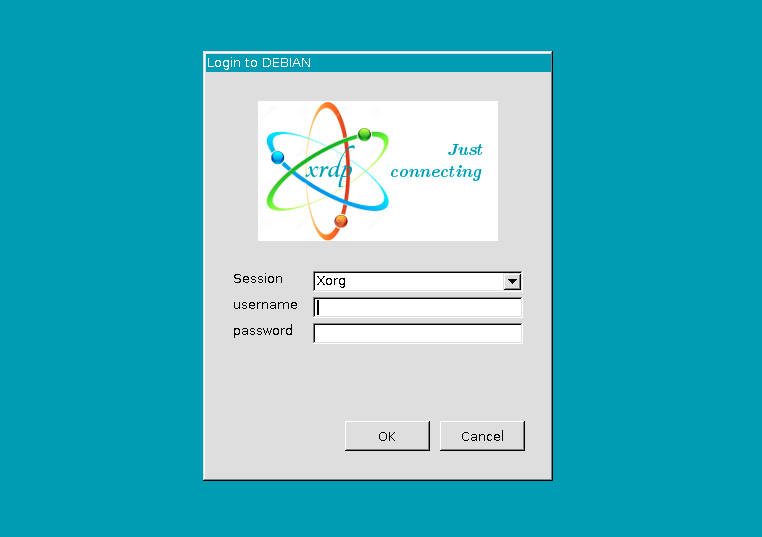
Take full control of your Raspberry Pi remotely with Remote Desktop Protocol (RDP). Enjoy a seamless desktop experience, run applications, manage files, and navigate a user-friendly interface from any Windows machine. With SocketXP's Raspberry Pi Remote Desktop Access, skip the command-line and unlock the convenience of remote Pi management using xRDP.
Explore Raspberry Pi Remote Desktop with RDP
Access your Raspberry Pi's desktop environment remotely to run GUI apps and manage files with ease.

Skip the command line and enjoy a familiar desktop interface for managing your Raspberry Pi remotely.

Set up remote Raspberry Pi desktop access with xRDP and SocketXP in minutes.
Eliminate the need to SSH manually for routine tasks. With SocketXP's Remote Command Execution, control and automate operations on a single Raspberry Pi or an entire fleet — from anywhere, at any time.

Simplify Raspberry Pi Remote Command Execution – Execute shell commands or scripts on one or many Pi devices without manual SSH logins, ensuring operational efficiency and security.

Protect data with HTTPS, SSL encryption, and access tokens while integrating with your Pi dashboard or CI/CD pipeline.

Execute commands remotely on your Raspberry Pi fleet — whether at home, in the office, or on the go.
Find quick answers to the most common questions about this topic.
Install the SocketXP agent on your Raspberry Pi and run 'socketxp connect tcp://localhost:22'. The agent creates a secure outbound SSL/TLS tunnel to SocketXP's cloud gateway. You can then SSH into your Pi via the SocketXP web terminal in any browser, or use an SSH client (PuTTY on Windows, Terminal on Mac) via the SocketXP slave mode proxy — from anywhere in the world, without port forwarding or a static IP.
Yes. SocketXP provides secure remote access to Raspberry Pi without any port forwarding. The SocketXP agent on the Pi initiates an outbound TLS connection to SocketXP's cloud gateway — no inbound ports are opened on your router. This works even behind home routers, corporate firewalls, cellular networks, and CGNAT.
Yes. SocketXP's outbound tunnel architecture works even when your ISP uses carrier-grade NAT (CGNAT), where your router itself has no public IP address. The Pi initiates the connection outbound, bypassing CGNAT entirely. This makes SocketXP the right choice for Pi devices on mobile broadband, cable ISPs that use CGNAT, and Starlink satellite internet.
Use Raspberry Pi Imager's advanced options (gear icon) to pre-configure SSH, WiFi credentials, and a user account before writing the OS image to the microSD card. The Pi boots headlessly, connects to WiFi, and starts SSH automatically. Then install the SocketXP agent via a local SSH session to make the Pi permanently accessible from anywhere. See our headless Raspberry Pi setup guide for full details.
Yes. Enable VNC on your Raspberry Pi via raspi-config (Interface Options > VNC), install the SocketXP agent, and run 'socketxp connect tcp://localhost:5900'. Then run SocketXP in slave mode on your access device to create a local VNC proxy. Connect any VNC viewer (RealVNC, TightVNC, macOS Screen Sharing) to the local proxy and get full Raspberry Pi desktop access — no port forwarding required.
Yes. Install SocketXP for Windows, run it in slave mode to create a local TCP proxy on localhost:3000, then open PuTTY and connect to localhost port 3000. You get a full SSH session to your Raspberry Pi from Windows. You can also use the Windows built-in OpenSSH client ('ssh pi@localhost -p 3000') or WinSCP for file transfers. See our Windows guide for details.
Yes. Install SocketXP for macOS in slave mode to create a local proxy, then use macOS Terminal to run 'ssh pi@localhost -p 3000'. Alternatively, use the SocketXP web portal's browser-based SSH terminal — no software installation needed on the Mac. See our Mac guide for details.
Yes. Open Safari (iPhone) or Chrome (Android) and go to portal.socketxp.com. Log in, navigate to Devices, and tap the terminal icon next to your Pi — a full SSH session opens in the mobile browser with no app installation required. See our mobile guide for details.
Yes. Run 'socketxp connect http://localhost:
Yes. SocketXP is a purpose-built IoT Remote Access and Device Management platform designed to scale to tens of thousands of Raspberry Pi and embedded Linux devices. Each Pi runs a lightweight SocketXP agent that connects to the cloud gateway. The SocketXP portal shows all devices with their online/offline status and provides centralized SSH, OTA updates, resource monitoring, and RBAC from a single dashboard.
SocketXP is purpose-built for IoT and Raspberry Pi fleet management — Tailscale and ngrok are general-purpose tools. Tailscale is a mesh VPN that requires installing a VPN client on every access device and provides no IoT-specific features (no OTA updates, no device monitoring, no fleet portal). ngrok creates short-lived developer tunnels with session time limits and no persistent device management. SocketXP provides a permanent public HTTPS URL, browser-based SSH, OTA firmware updates, device health monitoring, and RBAC — all from a single lightweight agent on each Pi, scaling to tens of thousands of devices.
SocketXP supports all Raspberry Pi models: Pi Zero W, Pi Zero 2W, Pi 2, Pi 3 (Model A/B), Pi 4 (Model B), and Pi 5. The SocketXP agent provides ARM (32-bit) binaries for older models and ARM64 (64-bit) binaries for Pi 4 and Pi 5. It runs on Raspberry Pi OS (Raspbian), Ubuntu for Raspberry Pi, and other Debian-based Linux distributions.
Hear from our satisfied customers about how SocketXP has transformed their IoT workflows with seamless connectivity, robust security, and unmatched reliability.